
I counted the repos in my own GitHub account: 148 total—126 private, 22 public—with 3 forks mixed in. Just the repo objects (not counting metadata) amount to over 3 GB. Five-plus years of commit history, unfinished experimental code, automated scripts still running—all there.
Then I stared at that number for a while and asked myself a question: If this account vanished tomorrow, what would I still have?
The answer made me uncomfortable. So last week I spent an all-nighter turning those repos into a backup that’s bulletproof against account bans, service outages, and accidental deletions. This post is the full teardown—architecture, tools, five pitfalls, and verification methods, all copyable.
3-2-1: An Old Principle, New Execution
Backup has one iron law: 3-2-1—at least 3 copies, on at least 2 different storage mediums, with at least 1 copy off-site. The idea is to eliminate single points of failure: if a disk dies, another disk survives; if a data center burns down, another data center keeps going.
I translated that principle into this architecture:
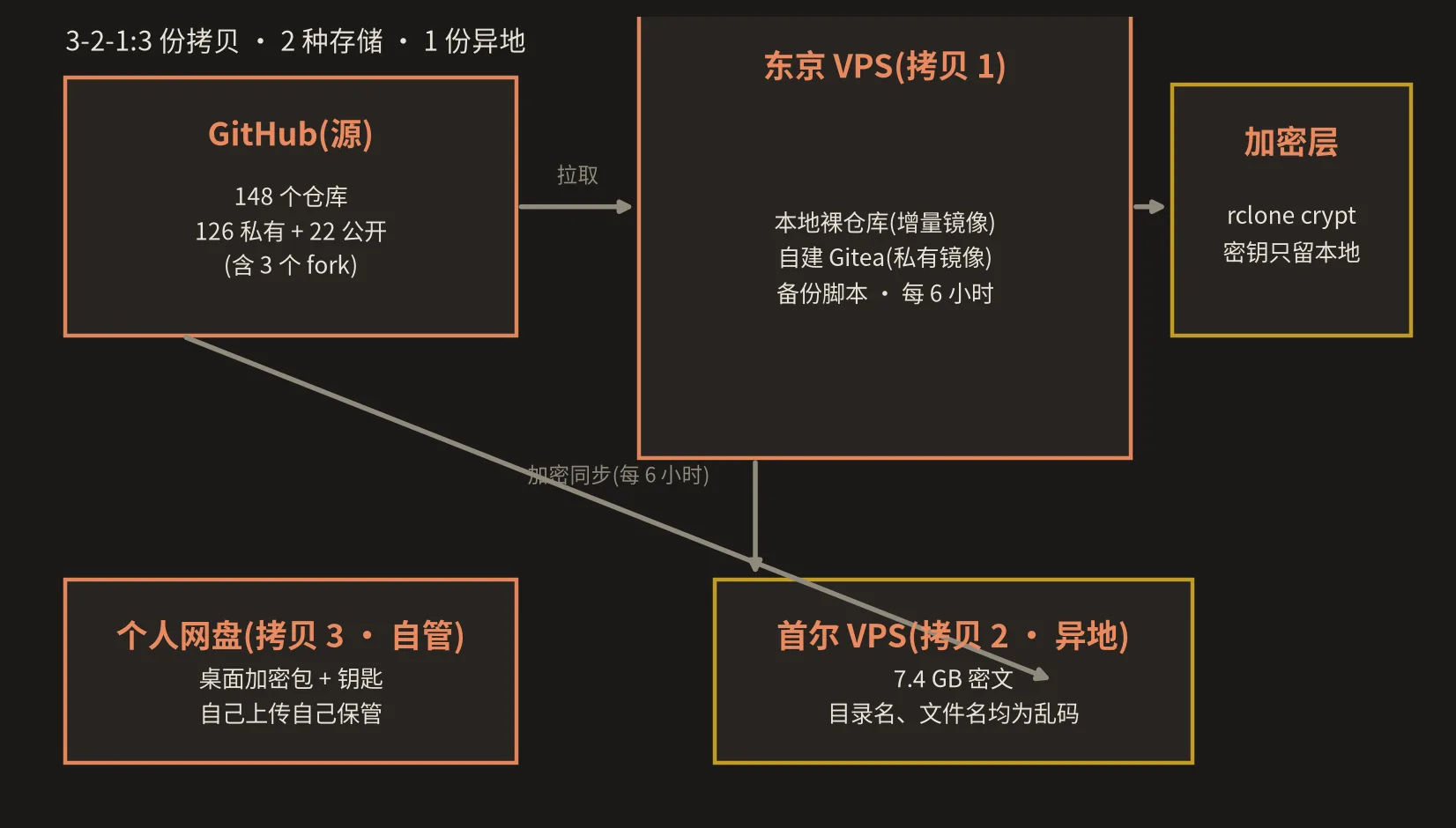
- Copy 1 (Tokyo VPS): Self-hosted Gitea private mirror + local bare repos. Gitea gives you a “live backup” you can browse, clone, and fall back to at any moment—not just a pile of tarballs.
- Copy 2 (Another VPS thousands of kilometers away): Encrypted cold backup. Everything is encrypted before upload; directory names and file names are all gibberish.
- Copy 3 (Self-managed): Encrypted ciphertext + decryption key bundled together, stored in my own cloud drive. This copy represents “outside the platform”—even if both of my VPS machines go offline, this one survives.
The critical design choice is simple but essential: keys are separated from ciphertext. The off-site machine deliberately stores zero decryption keys. Even if someone walks away with the whole server, all they get is a pile of gibberish files.
Toolchain: Three Tools, Each Handles Its Own Lane
There are plenty of mirror tools out there, but I ended up relying on just three:
gickup (v0.10.45) — The repo mirroring engine. One config file manages all repos, with incremental sync and “mirror mode” (deletions on the remote are also reflected locally). I use it to push normal-sized repos to Gitea and a local bare directory.
Native git — The dedicated pipeline for large repos. The 4 repos over 100 MB (the largest at 1.3 GB) all went through git clone --mirror + git push --mirror. Brute force, but reliable.
github-backup (0.65) + rclone (1.75) — The former exports all the metadata outside repos—issues, PRs, wikis, releases, gists, watch lists—into JSON. The latter handles encryption and off-site sync. Most people only back up code and don’t realize the decision-making process lives in issues and can be far more valuable.
Here’s what encryption looks like side by side—the same directory, but what the server sees:
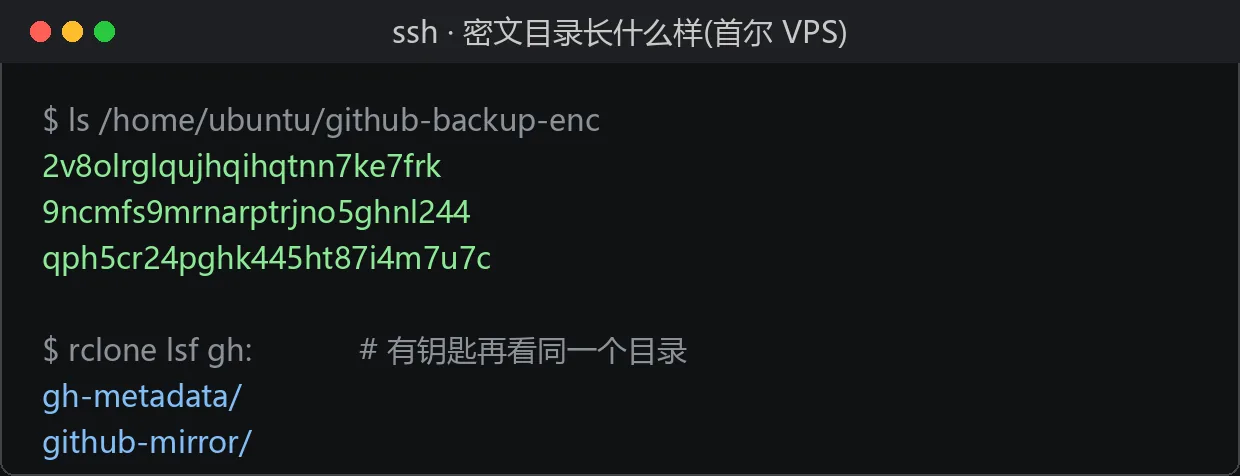
The top is what actually exists on the server disk; the bottom is that same directory after mounting it with rclone and the key. Without that key, these files mean absolutely nothing.
Five Pitfalls That Cost Me an All-Nighter
1. Large repos will OOM your mirroring tool. gickup uses go-git under the hood, which loads the entire pack into memory before processing. An 80 MB repo is fine, 200 MB starts behaving unpredictably, and a 1.3 GB repo will trigger the kernel’s OOM killer. Don’t fight it—set a threshold (I use 100 MB) and route everything above that through native git instead.
2. Gitea doesn’t allow “push-to-create” by default. If you blindly push to a non-existent repo address, you’ll get Push to create is not enabled for users plus a 403. The fix is to call the creation API first to create the repo, then push. The create endpoint is idempotent: if the repo already exists, it returns 409, which I just ignore. I put this into my backup script—create the repo before pushing every time.
3. DNS between the server and GitHub can be flaky. Their flakiness isn’t your fault, but your backup chain has to withstand it. I wrapped the “pull” and “push” steps for large repos with 3 retries each, with a 45-second pause between attempts. A single network blip no longer breaks the whole chain. The frequent could not read Username errors in my logs were actually DNS resolution failures, not credential issues.
4. Cloud object storage auth quietly changed its playbook. In 2026, when I went to set up Cloudflare R2, I found the old “R2 Admin Token” endpoint had been deprecated. The new approach: create an API Token with an R2 permission group via the Cloudflare API, then Access Key ID = the token’s ID, Secret Access Key = the hex digest of the token’s plaintext after SHA-256. Also, rclone requires --s3-no-check-bucket when accessing R2; otherwise it hits a 403 on bucket creation validation. These two gotchas were scattered across docs and cost me half an hour.
5. Never edit a running backup script in place. Bash reads and executes line by line; if you overwrite the file while it’s running, it continues from the original byte offset—reading halfway through the new file and halfway through the old content—then crashes with a cryptic l/bin/rclone: No such file or directory and quits. Use atomic replacement: write the new file first, then mv it into place, or just wait for the current run to finish. I fell into this trap twice in one night.
Verification: It’s Not Done Until the Numbers Match
Finishing the backup isn’t the end—the numbers must reconcile. My verification is a three-way audit; you can copy it verbatim:
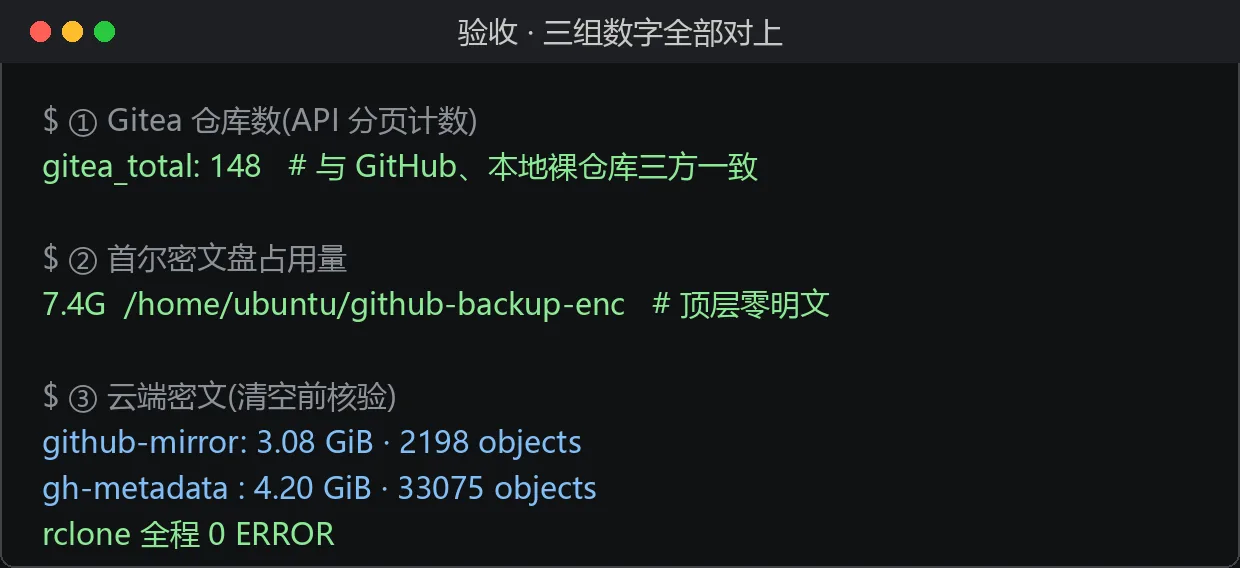
- Count alignment: Self-hosted Gitea repo count = GitHub repo count = local bare repo count (148 / 148 / 148).
- Ciphertext spot-check: Both off-site top-level directories total 7.4 GB, with zero plaintext visible at the top level.
- Scale alignment: Object counts are consistent across all three sides (2,198 objects on the mirror side, 33,000 on the metadata side), and rclone logged zero errors throughout.
I then wired it into cron to run automatically every 6 hours, with a lockfile to prevent overlapping runs, and all failures are logged. New repos are picked up automatically with no manual intervention required.
Restoration Is the Other Half of Backup
Backup only pays off at the moment of restoration. Here are a few things I can already answer:
- The key (a single 49-byte file) is stored separately in a password manager, physically isolated from the ciphertext;
- The restore drill command is one line: pull the ciphertext back with rclone, then
git log -1to compare the remote HEAD commit—a single real restoration drill beats ten self-comforting backup copies; - No specific server needs to be alive during recovery: the ciphertext exists both on the off-site machine and in my self-managed cloud drive.
Closing Thoughts
Cost: two lightweight VPS instances, one object storage bucket within the free tier, and one all-nighter. Return: an architecture that no account ban, no outage, and no accidental deletion can penetrate.
If you only have ten minutes tonight, do these three things first: pull your repo list and count them; test whether git clone --mirror completes for your largest repo; create an object storage bucket and try uploading then deleting a file. Once you’ve done those three, you’re already closer to “impossible to lose everything” than 90% of developers.