
The previous post, I Built Myself a Founder OS With Claude Code, covered how to build a knowledge base. This one covers how to use it.
Specifically: how to let human and AI collaborate inside the same knowledge base. I read the dashboard and tweak notes in Obsidian; Claude Code runs batch triage, fills templates, and migrates files in the terminal. Both sides edit the same Markdown files, and Git records everything.
First, the Conclusion: Obsidian Is Not Required
LynxOS doesn’t depend on any software — Claude Code is an interface, VS Code is an interface, grep is search. Obsidian is just one of the better interfaces available right now. Wiring it in makes the “human reads the board and edits notes” action smoother, but the system runs fine without it.
The only prerequisite for wiring it in: your knowledge base is plain Markdown files. Meet that condition, and Obsidian, Typora, VS Code, Notepad — any of them can be your editor.
Install, Open
I installed via winget (Obsidian.Obsidian, currently 1.13.7); the official site download works too. Open it, choose “Open folder as vault” — a vault is Obsidian’s word for “a folder of notes.” Point it at your knowledge base root.
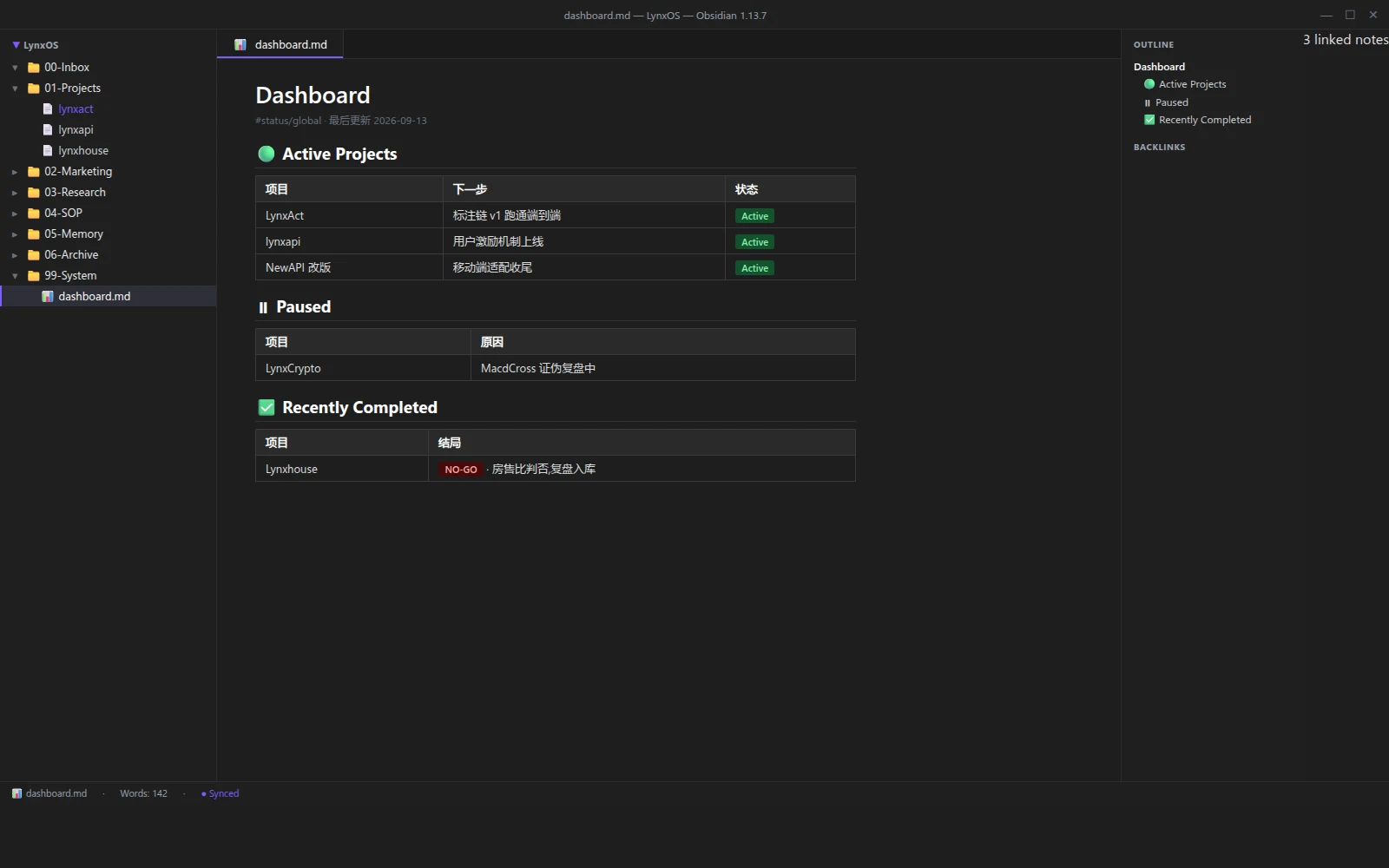
The file tree is on the left, eight buckets at a glance. Open 99-System/dashboard.md to see the global picture.
Three Shortcuts, Enough for a Long Time
You don’t need to learn all of Obsidian. Three shortcuts cover 90% of daily use:
- Ctrl+O — Quick switcher. Press it, type to search file names, Enter to jump. Much faster than digging through the file tree.
- Ctrl+Shift+F — Global search. Searches full text across the entire knowledge base —
grepwith a GUI. Want to find “where did I mention Lynxhouse last”? One search. - Ctrl+E — Toggle edit/reading mode. Reading mode shows rendered output (headers big, links clickable); edit mode shows source (with
#and[]). Use reading mode to browse, switch to edit to change.
There’s also Ctrl+P — the command palette. Every action is searchable, including settings. Forgot a shortcut? Ctrl+P and search.
Wikilinks [[]] Are Great, But I Turned Them Off
Obsidian’s signature feature is [[wikilinks]] — double brackets connect two notes, with backlinks and a graph view. Great, but I turned them off in settings.
Reason: my knowledge base isn’t just for Obsidian. Claude Code, grep, and CI also read it. They don’t understand [[wiki]] syntax — they only understand standard Markdown relative-path links ([doc](../03-Research/xxx.md)).
How to set it: Settings → Files & links → turn off “Use Wikilinks”, and set New link format to “Relative path.” Now when you insert a link in Obsidian, it generates a standard markdown link, not a [[wiki]].
Good news: turning off wikilink syntax doesn’t kill the capability. Obsidian still parses standard markdown links — the backlinks panel and graph view still work. The links just take a more universal format.
The Daily Flow
- Open dashboard.md — Scan which projects are Active and what’s next. This is the system’s entry point, not some project folder.
- New idea — Right-click in
00-Inbox/to create a note, write whatever. Don’t agonize over “is this a business idea or a technical one” — drop it in first, triage later. - Edit a project — Open its
README.mdproject card, change the “next step” or add to the “decision log.” - Don’t want to triage manually — Close Obsidian, open the terminal, tell Claude Code “triage my Inbox” or “summarize LynxAct’s marketing strategy.” It does the dirty work.
How Human and AI Divide the Work
The core of “dual-driving” isn’t who’s stronger — it’s that each side does what it’s good at:
- Human does: judgment (is this idea worth pursuing), writing judgments (“core hypothesis,” “key risks” on project cards), maintaining the board (keeping the global picture, knowing what to push forward and what to pause). These need human intuition and experience; AI can’t replace them.
- AI does: grunt work (batch migration, formatting, filling templates), search (finding things across 500 files), summarization (distilling a pile of material into an SOP). These are AI’s strengths; humans are slow and tired doing them.
Both sides edit the same files, Git is the source of truth. No “syncing” needed — the file is on disk; you edit it, it’s there; AI edits it, it’s there. The one thing to watch: when AI runs a batch operation (like migrating 145 files), let it finish before you touch things, to avoid collisions.
Commit Cadence
Commit after each batch. You don’t need to run git manually every time — tell Claude Code “commit,” and it does add + commit + push to a private GitHub repo. The commit message spells out what changed, so when you look back, you can see “this batch did X” at a glance.
Obsidian doesn’t touch git. It’s an editor, not a version control tool. Version control is git’s job.
A Real Pitfall (WSL Users Read This)
If your knowledge base is in WSL (/home/xxx/MyKB), Obsidian can’t open the \\wsl.localhost path — it throws EISDIR. The file watcher doesn’t support network paths. This isn’t an Obsidian bug; it’s a universal “network path + file watching” limitation.
Fix: move the knowledge base to the Windows filesystem (C:\Users\xxx\Documents\MyKB). WSL accesses it via /mnt/c as before — read, write, git, all unchanged. After the move, git will show mode changes (100644→100755); set git config core.fileMode false to clean it up.
I logged this pitfall in detail in the “Addendum” at the end of the previous post — no need to repeat here.
Don’t Commit .obsidian/
Obsidian creates a .obsidian/ folder in the vault root, storing its own config (theme, shortcuts, plugins). This goes in .gitignore.
Your notes are the asset; Obsidian’s config is not. Switch computers, reinstall Obsidian — config can be rebuilt, notes can’t be lost.
The Minimal Usable Checklist
If you just want to get going fast, four steps:
- Install Obsidian, open your knowledge base folder as a vault
- Settings → Files & links → turn off “Use Wikilinks,” link format = “Relative path”
- Open
dashboard.mdevery day to scan the global picture - New ideas go in
00-Inbox/; editing a project means opening itsREADME.md
Everything else — graph, templates, plugins — add when you actually need them. Get the basics running first; don’t drown in the feature list.
Finally
The core of “dual-driving” isn’t how powerful Obsidian is, but how ordinary the files are. Ordinary enough that both human and AI can edit them. Ordinary enough that switching software doesn’t lose them. Ordinary enough that Git can trace every change. Obsidian is just the best steering wheel available right now — the wheel is replaceable, the road (your knowledge base) is always there.
The previous post was about building. This one is about driving. Build it, drive it, and you find out whether the system actually works. My experience: it does. You tweak two lines in Obsidian, tell Claude Code “commit,” and the whole knowledge base moves forward one step. No opening five apps, no memorizing ten layers of folders, no agonizing over where an idea belongs — drop it in Inbox first, let the system handle the rest.